ChaOS GitHub Discord
ChaOS

Custom firmware for the TrimUI Brick. Twelve classic consoles, PlayStation included, with shader and overlay support, PC games through PortMaster, PICO-8 with your own copy, your games and saves on all your devices with RomM and Syncthing, and your music, all from the handheld.

Built on TortOS by Eric Reinsmidt. For the Brick and Brick Hammer, and on Pre-Release the Brick Pro too.

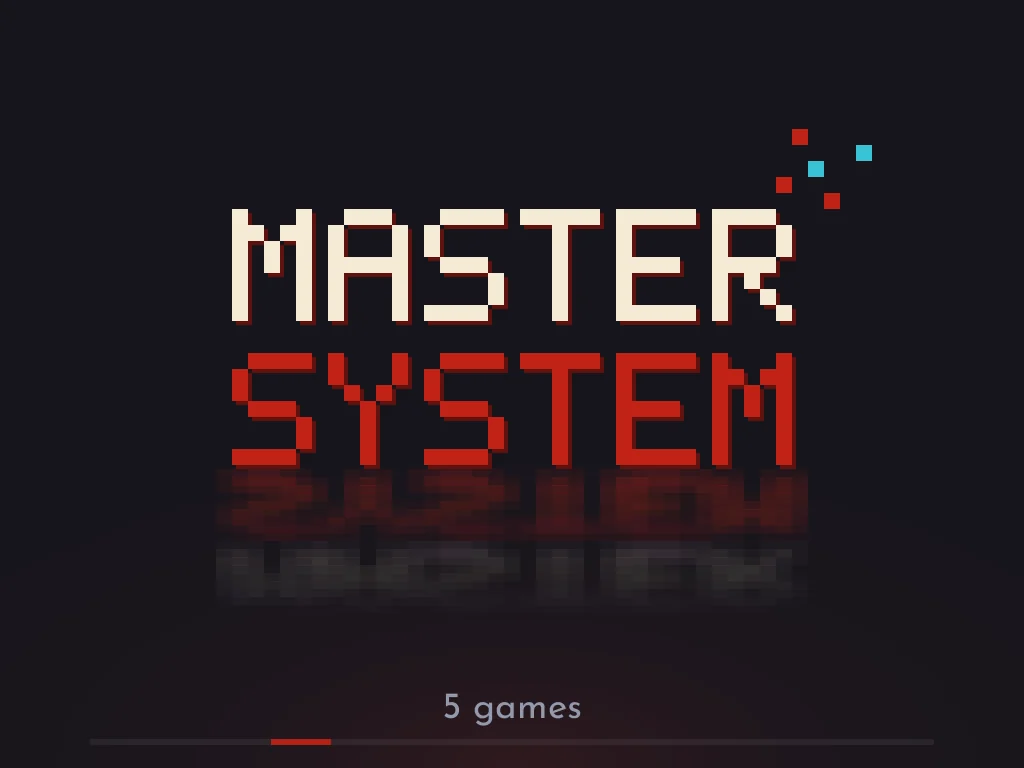
The ChaOS shelf in the Pixel Names theme
Pixel Names, ChaOS's own theme

Games start instantly

The emulator is already running, so a game is up the moment you press A, and picks up where you stopped.

Shaders and overlays

CRT, LCD and PT SkyWalker541 looks you can tune, frames around the picture, and a check that says if the game keeps its speed.

Ports from the Brick

Browse PortMaster's catalog and install ports, with their runtimes and libraries.

Your games, everywhere

Your own RomM library, and Syncthing to keep saves, games and BIOS the same on your other devices.

Music and audiobooks

Muse plays from anywhere, with Bluetooth headphones and a pocket lock screen.

Your Brick stays yours

ChaOS runs from the SD card. Take it out and the Brick boots its own system.

Get started

You need a Brick or Brick Hammer (or a Brick Pro, on Pre-Release), a microSD card, and a computer just this once.

  1. Put ChaOS on the card

    ChaOS Installer (macOS, Windows, Linux) downloads the latest ChaOS and writes it to the card. It also updates a card that already has ChaOS or TortOS, keeping everything on it.

    Or by hand

    Download ChaOS-v<version>-brick.img.xz from Releases and write it with Raspberry Pi Imager or balenaEtcher. This erases the card.

  2. Turn it on

    Put the card in and power on. The first boot takes a little longer while the rest of the card becomes space for games, music and saves. The logo's pixels fly in, then the shelf.

  3. Set the clock

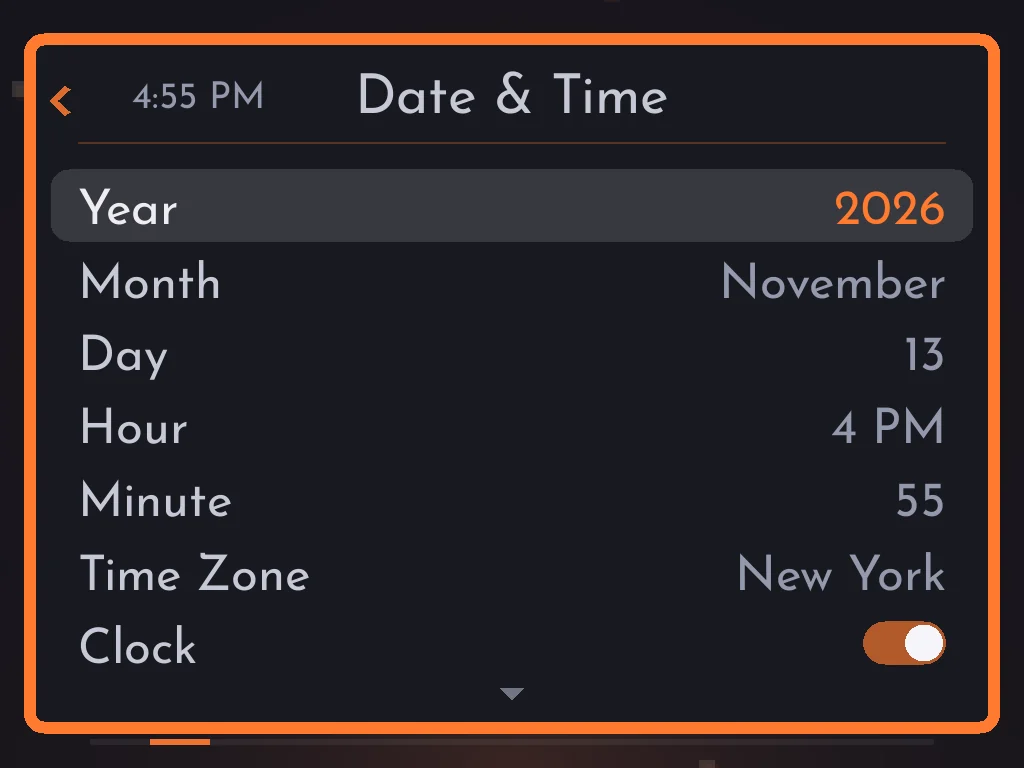
    Press MENU on the systems row, then Date & Time. Left and right change each row; set your time zone. Wi-Fi keeps the clock right after that.

    The Date and Time screen
  4. Join Wi-Fi

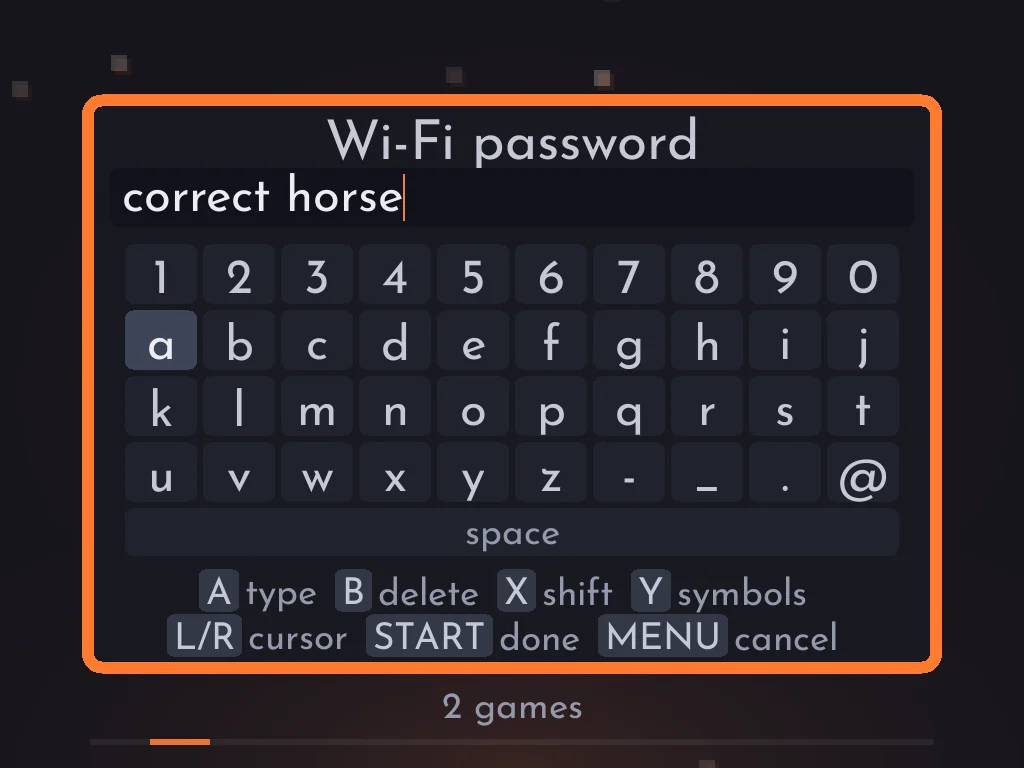
    MENU > Wi-Fi & Bluetooth > Wi-Fi, pick your network, and type the password on the on-screen keyboard. WPA2 and WPA3 both work. Y rescans; X forgets a network.

    The on-screen keyboard
  5. Add games

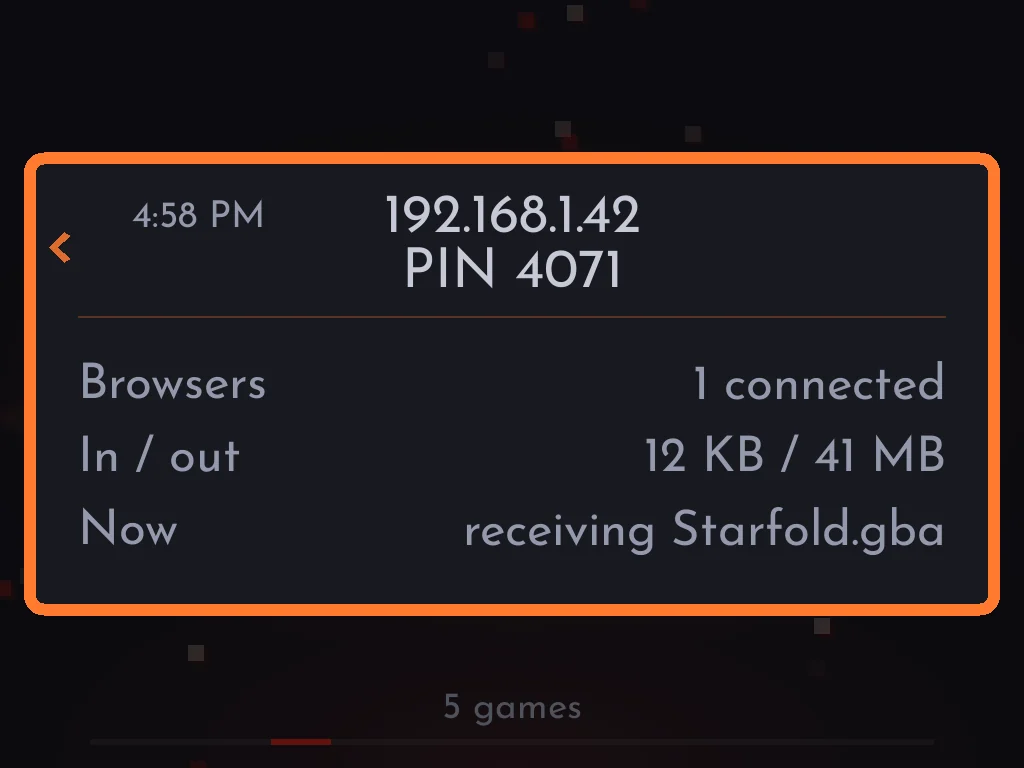
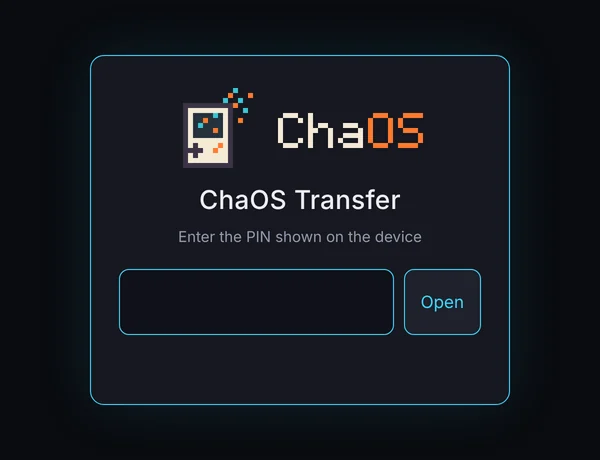
    MENU > ChaOS Transfer shows an address and a PIN. Open the address in a browser on your phone or computer, type the PIN, and drag games into their console's folder. Or copy them straight onto the card from a computer, into Roms/<console>.

    ChaOS Transfer on the Brick, showing its address and PIN
  6. Get the covers

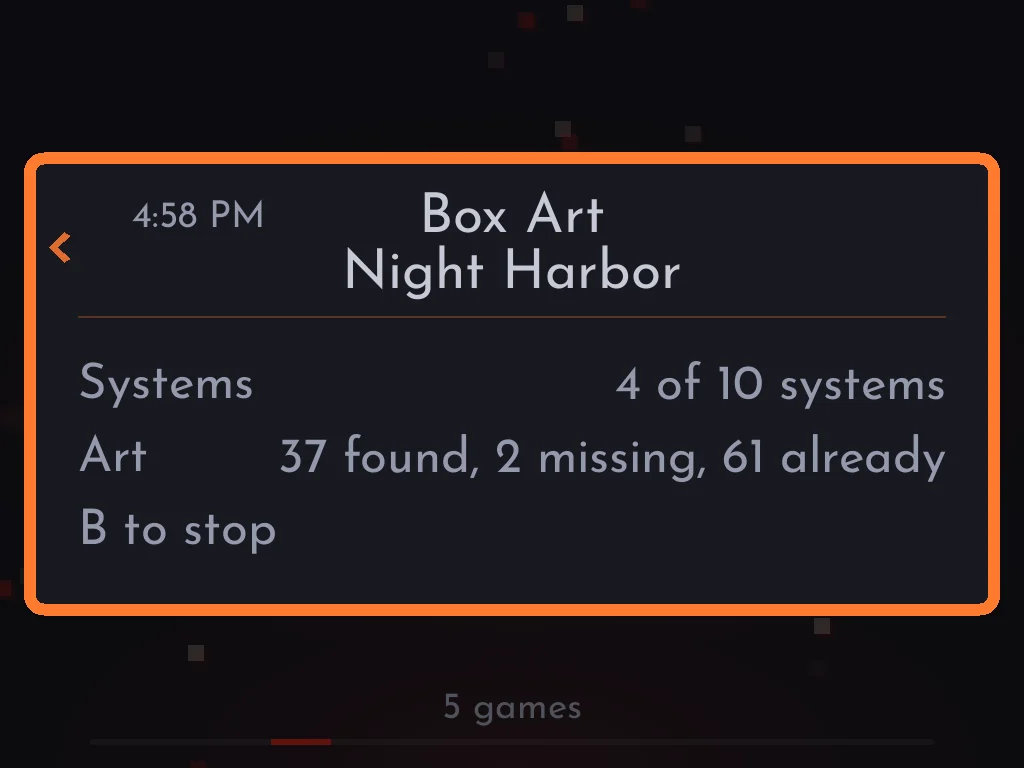
    MENU > Box Art fetches every missing cover over Wi-Fi. Then pick a console and press A on a game.

    Box Art fetching covers

Quick button guide

The Brick carries this too, under MENU > Controls.

VolumeVolume, in games too
MENU + VolumeBrightness down and up, in games and ports too
SELECTOpen or close Muse (everywhere but a running game; the in-game menu counts)
MENUSettings for what you're looking at. Inside a menu, closes the whole menu at once
BBack one screen
POWERSave and turn off
← → in menusChange a setting; hold to keep changing it. A opens a row marked ›

Features

Everything ChaOS adds to TortOS, grouped the way you'll use it. ChaOS marks what ChaOS brings; the rest comes from TortOS. The pictures are the Brick's own screens: tap the labels under one to see more.

Playing games

  • Instant start. The emulator is already running, so nothing loads between you and the game.
  • Resume. Quit from the menu or press power: the game is saved on the way out and continues from that moment next time.
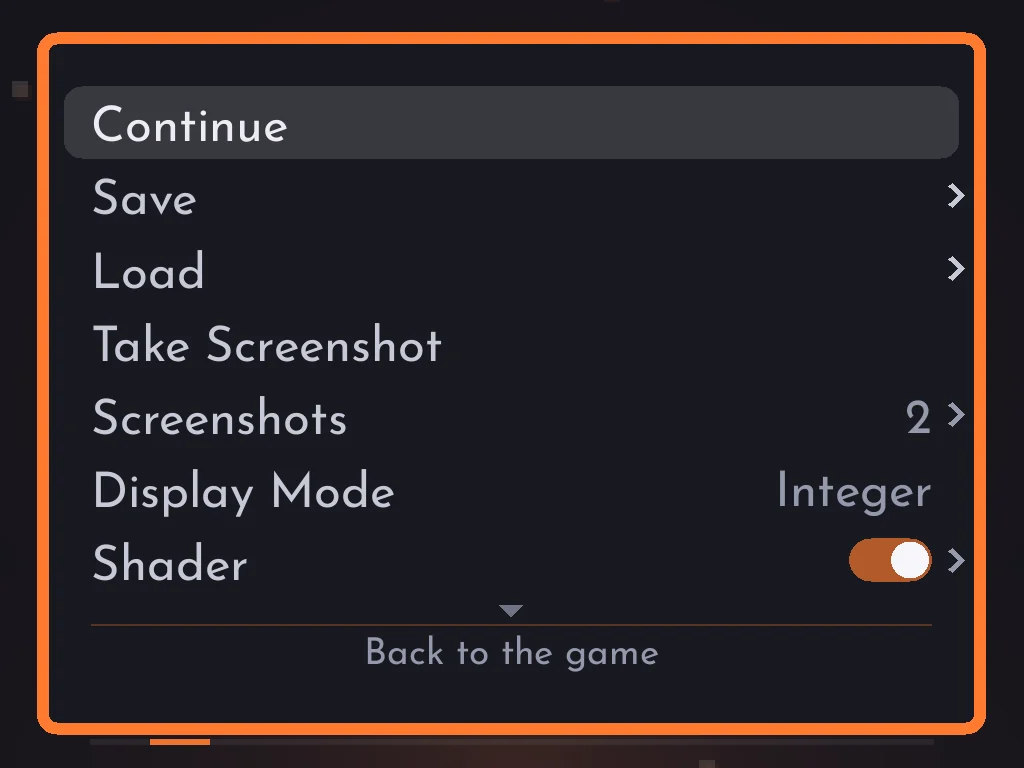
  • Six save slots per game, each with a picture of where you were, from Save and Load in the in-game menu.
  • Fast forward with F2: 2×, 3×, 4×, then normal. Silent while fast; heavy SNES and GBA games top out around 2.5×.
  • Rewind ChaOS: turn it on in a console's menu, then hold F1 to step back through the last minutes. It costs a little speed, so it's off until you want it.
  • Button mapping ChaOS: a console's Controls shows every button and lets you change it, for the console or just one game, with turbo on any button.
  • Turbo: X and Y are turbo A and B on the consoles with two face buttons; L2/R2 are turbo L and R on Game Boy Advance.
  • Screenshots ChaOS with MENU+X, looked at full screen from Screenshots in the in-game menu. They're PNGs in Screenshots/<console>/<game>/.
  • RetroAchievements: sign in under MENU > RetroAchievements. Unlocks pop up as you play; ones earned offline are sent later.

Games come first ChaOS

Nothing of ChaOS's own runs while you play. An update that was downloading pauses and carries on afterwards, its progress shown on the shelf.

The battery to the end

The game is saved and the Brick turns off when the battery is truly empty, judged by its voltage: about half an hour past the gauge's 2%. A red dot blinks for the last stretch. Rather stop sooner? Battery Warnings > Save and Turn Off At takes 3% to 10%.

Play Time

MENU > Play Time: per game or per console, for today, the week, month, year or all time. Y switches; the bottom line has launches, longest session and last played.

Cheats ChaOS

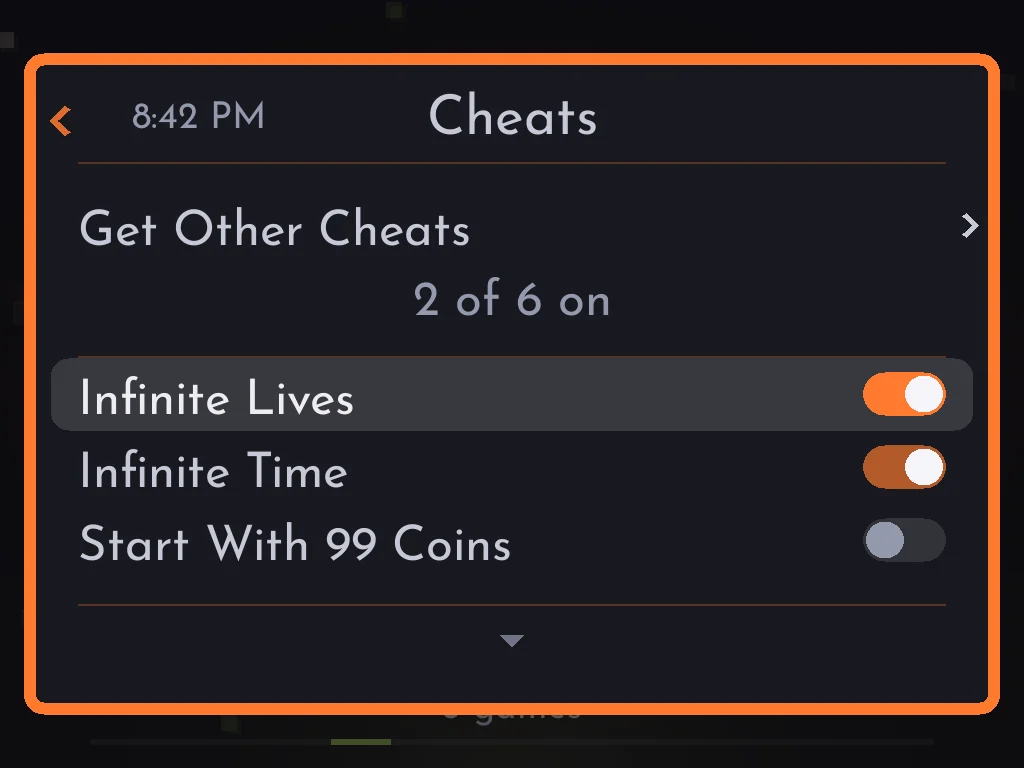
Game Genie, Action Replay, GameShark and Code Breaker codes, and RetroArch's memory cheats, from the in-game menu.

  1. In a game, press MENU and choose Cheats. It's there for any game with cheats to get.
  2. Get Cheats finds the game in libretro's cheat database over Wi-Fi and lists its cheat files, best match first. Show All lists the console's whole collection, with L2/R2 to jump by letter.
  3. Each cheat has a switch. A turns it on or off, and it takes effect in the game at once.
  • Your choices are kept per game and come back next time you play it.
  • Your own cheats: put RetroArch .cht files in Cheats/<console>/, named like the game, or send them with ChaOS Transfer.
  • Works on NES, SNES, Genesis, Master System, Game Gear, TurboGrafx-16 and the Game Boys. Neo Geo Pocket takes memory cheats only.

Cheats and achievements

RetroAchievements doesn't count unlocks made with cheats. The moment a cheat goes on, achievements pause for the rest of that game, and the in-game menu says Paused. Turn the cheats off and start the game again to earn them.

Cheats are a list kept by the community, so some may not work with every version of a game. Cheats that ask for a number of your own (shown as Can't use) aren't offered.

Shader support ChaOS

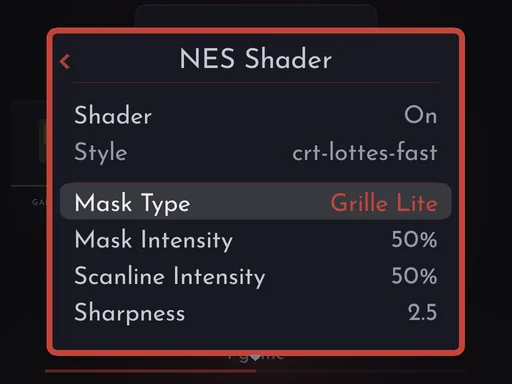
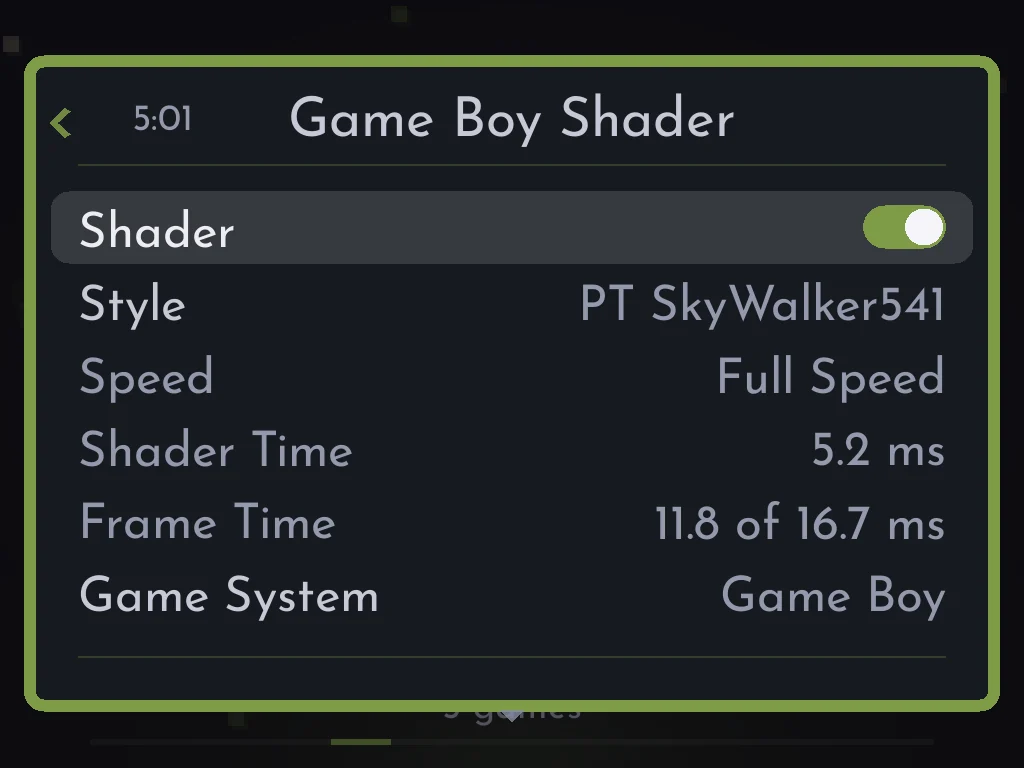
ChaOS adds shaders to every console: CRT, LCD and PT SkyWalker541 looks, each with settings to tune, drawn by the Brick's CPU in ChaOS-diatom. Find the Shader row in a console's menu (MENU on its shelf) or in the in-game menu.

  • A opens it: its first row turns it on and off, and the rest are its settings.
  • See it before you choose it. In a game, the paused picture shows each setting as you scroll. Hold Y to hide the menu and look at the whole screen.
  • Reset to Recommended puts back the shader's own settings.
  • Settings are kept per console, and survive updates.
ConsolesStylesWhat you can set
NES, SNES, Genesis, Master System, TurboGrafx-16crt-lottes-fast (by Timothy Lottes, adapted by hunterk), or the lighter Scanlines (by RiskyJumps)Mask Type (Grille Lite, Grille, Shadow Mask), Mask Intensity, Scanline Intensity, Sharpness, Curvature, Trinitron-style Curve, Corner Round, CRT Gamma. Scanlines: Brightness and Line Brightness.
Game Boy, Game Boy Color, Game Boy AdvancePT SkyWalker541, or lcd3x (by Gigaherz)Game System (which screen it imitates). Pages for Screen (backing colour, transparency, darken), Pixels (grid or dots, gap colour, line width), Shadows (drop shadow, direction, bezel edge) and Glare and Sheen (light position and drift, sheen bands and ripple).
Game Gear, Neo Geo Pocket, Neo Geo Pocket Colorlcd3xBrighten Scanlines, Brighten LCD.

Scanlines for speed

Scanlines costs about a tenth of crt-lottes-fast. If a heavy SNES game slows down with the CRT, try it.

Curvature costs

The CRT starts flat. Curvature works, but takes about twice the CPU, so check the speed after turning it on.

PT's grid wants Integer

PT's Pixel Effect follows the game's pixels, so it's drawn in Display Mode Integer only. For a grid in Aspect or Stretch, use lcd3x.

PT sets the emulator for you

With PT on, ChaOS sets the emulator the way the shader is tuned, for the Game System it imitates:

  • Game Boy: color correction and frame blending off, and a plain grayscale palette.
  • Game Boy Color: GBC color correction.
  • GBA SP: GBA color correction with Smart blending.
  • Original GBA: GBA color correction with LCD ghosting.

Turn PT off and they go back. Changes show at once, in the in-game menu too. Each Game Boy game also plays on the machine it was made for, whatever its file is called: see Game Boy or Color, sorted.

The speed check ChaOS

In a game, the Shader menu says whether the game keeps full speed with the shader as you've set it. It's measured from the frames you actually play, not guessed.

Full Speed
The whole frame takes under 85% of the time a frame has. Room to spare.
Near the Limit
It fits, just. A busy scene may slow it down.
Too Slow
The game can't keep up. Lighten the shader or try another style.
(est.)
An estimate: the new settings haven't been played with yet.
  • Shader Time is the shader's share of each frame. Frame Time is the whole frame's work, against the time a frame has (16.7 ms at 60 fps).
  • If Frame Time is high but Shader Time small, the console's emulator is the slow part, not the shader.

Get a good reading

The check averages every frame played since the shader was last changed, and needs at least half a second of play before it stops estimating. For a reading you can trust:

  1. Set the shader the way you like it, then close the menu.
  2. Play for a minute or two, ideally through a busy part of the game: lots of sprites, scrolling, effects. Quiet title screens flatter it.
  3. Open the in-game menu and the Shader page again. Without (est.), the reading is real.

Change any setting and the count starts over, so check again after each change you want to judge.

Display Mode and overlays ChaOS

  • Display Mode per console: Integer (whole-number scaling, every pixel the same size), Aspect (as large as the game's shape allows) or Stretch (the whole screen). Every shader works in all three. Changed in a game, it changes as you press.
  • Overlays: frames drawn around the picture. Included for Game Boy, Game Boy Color and Game Boy Advance (by SkyWalker541 and KrutzOtrem), Game Gear and Neo Geo Pocket Color (by KrutzOtrem).
  • Add your own: every console has a folder in Overlays/. Use 1024×768 PNGs with a transparent window for the game. The NextUI Community Overlays has many more.
  • The included overlays are framed for Integer, and come back after an update if missing. Yours are never touched.
  • Crop Overscan for NES, TurboGrafx-16 and Master System: trims the edges an old TV hid, where some games leave flickering tiles or a blank column. In the console's menu and the in-game menu; in a game it shows as soon as you go back to it.

Shelves and themes

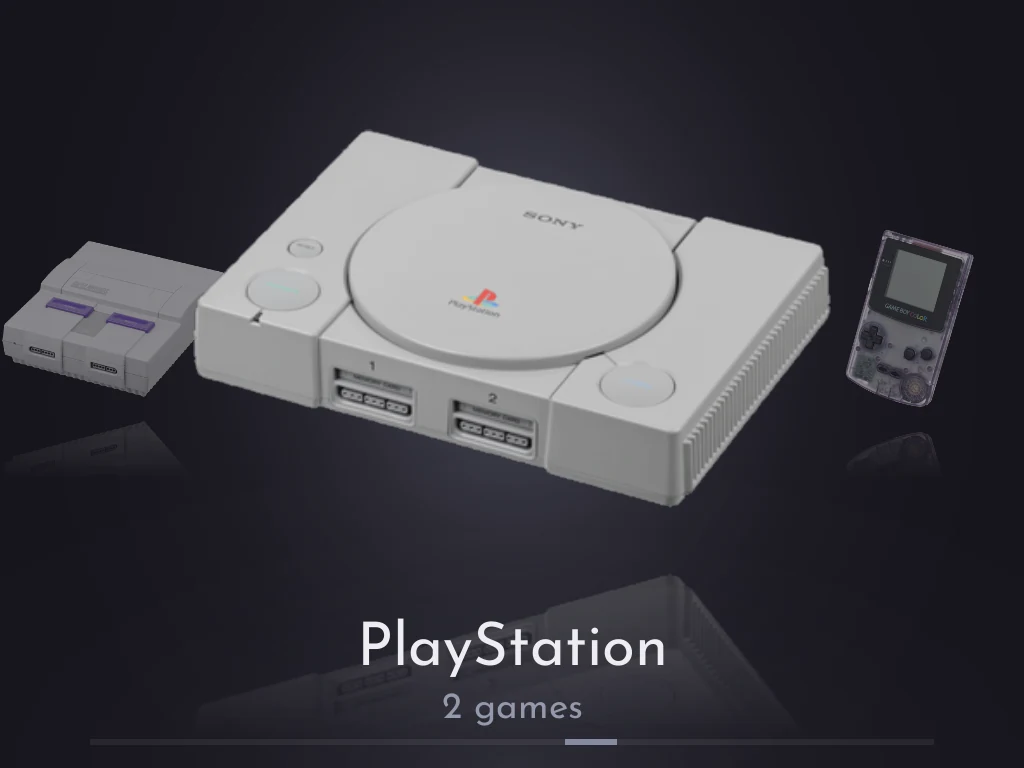
  • Five UI Themes: Plain Jane (a drawn card per console), Fancy Pants (the consoles themselves, rendered in 3D), and ChaOS's own Pixel Cards and Pixel Names ChaOS, where each console is its name in the logo's pixel letters, last word in the console's colour, and Pixel Burst ChaOS, the logo's look on every screen: pixel fonts, cut corners, block switches, and a picked row that sheds orange and cyan pixels.
  • Pixel animation ChaOS: the name you land on flies together pixel by pixel. Transition Speed sets how fast (Slow, Normal, Fast, or Static for none), separately for each direction.
  • Three UI Directions: Horizontal, Vertical, or Cubic, a cube where up and down change console and left and right change game. Pixel Cards has no Cubic; Pixel Names is Horizontal only.
  • Game List View ChaOS: a console's games as a scrolling list in the menus' style instead of cards, or List + Art Left or List + Art Right: the list beside the selected game's cover, sized to fit whatever shape the art is.
  • Favorites (Y on a game, and it says so) and Recently Played ChaOS (your last twelve games, every console) are shelves at the front, either one hideable. Up to 20 shelves.
  • Letter scrubbing ChaOS: L2/R2 jump to the previous or next letter on any game shelf, in every theme, list and Cubic, with the letter shown big. Hold the d-pad and after two seconds it shows the letter you're passing.
  • Sort By per console: Name, Play Time, Last Played or Recently Added. Game info on X: synopsis, year, genre and achievements.

Box art

  • MENU > Box Art fetches every missing cover over Wi-Fi from libretro's collection, by file name or, where none matches, by the ROM's checksum. A console's menu does just that console.
  • For one game ChaOS: X on it, then Get Box Art or Replace Box Art: Find Automatically, Search LaunchBox (search by name and pick the game, then its box art: romhacks and homebrew too), Search itch.io (where most new homebrew lives), or Use a Screenshot of your own. Left and right look through them; A uses one.
  • From your phone ChaOS: in ChaOS Transfer, open a console's folder and press Cover beside a game. Send a photo or saved picture, search LaunchBox and click a cover, or give a link: a picture, an itch.io page, or a Google Images result.
  • Covers you put in Roms/<console>/.media/<game>.png yourself are never touched. A game without one shows its last moment of play, or a card with its name.

ChaOS Transfer and ChaOS Wire ChaOS

  • ChaOS Transfer, over Wi-Fi: MENU > ChaOS Transfer, open the address it shows in any browser, and type the PIN (new every time).
  • Drag in games, music, audiobooks, BIOS files and overlays; get at your saves, save states and screenshots; set covers from your phone.
  • The folder you're in is at the top: Back goes up one, Device goes home, and a deep path folds its middle into … (click it for the rest).
  • New games are on the shelf when you leave the Transfer screen.
  • ChaOS Wire: the same page over the USB cable, no Wi-Fi needed (Mac, Linux, Windows 11). Plug in, MENU > ChaOS Wire, open http://10.55.0.2. It can also update ChaOS from the computer.
  • Download logs at the bottom of the first page gives one file with the last ten boots, Wi-Fi, headset and account names masked.

Ports with PortMaster ChaOS

PC games rebuilt for handhelds, packaged by PortMaster: Cave Story, Doom, OpenTyrian, Spelunky Classic and over a thousand more, most of them free.

  1. MENU > Get PortMaster downloads it over Wi-Fi. Nothing about ports is on the card until you choose this.
  2. A Ports shelf appears. Its first card, PortMaster, opens the catalog.
  3. A on a port installs it, checked against PortMaster's checksum. Its screenshot becomes its cover.
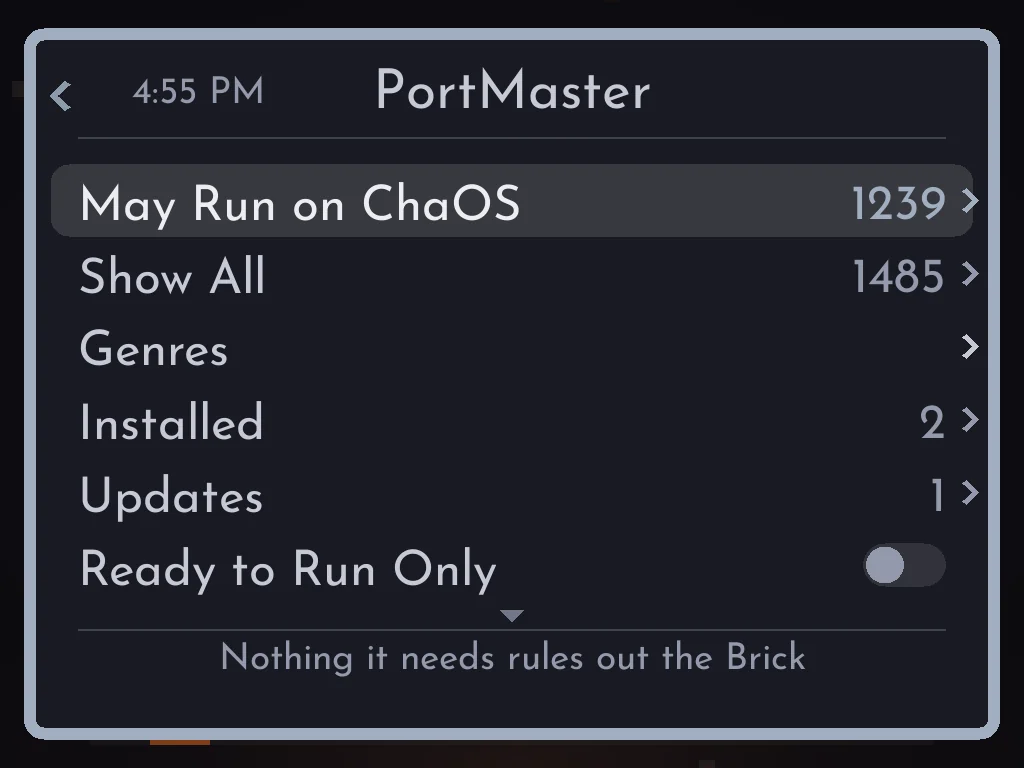
  • May Run on ChaOS lists what the Brick can run, as PortMaster's own site filters it: no second analog stick, 2 GB of memory or OpenGL needed. Show All lists everything. Also Genres, Installed, Updates and Ready to Run Only.
  • Each port shows its screenshot, genre, size, porter, needs, and description (Y reads it all). L2/R2 jump by letter.
  • Runtimes and libraries come with it: Godot, .NET, Java, Pyxel and the rest are fetched and unpacked with the port, and any library it needs that the Brick hasn't got comes from ChaOS's library pack.

Playing a port

SELECT+START quits at once. POWER freezes the port and asks Resume (exactly where it was), Close Port or Power Off. The d-pad works as the left stick too.

Removing

X on a port's page: Keep Saves and Settings (they wait for a reinstall) or Remove Everything. Uninstall PortMaster does the same for all of it.

Updates keep your saves

A port's update unpacks over the old one, so its saves and any game files you copied in stay. Update PortMaster keeps its runtimes and settings.

Ports that need your files

Some ports need data from a game you own, like Doom's WAD files. After installing, the port says which files and where they go. Ready to Run Only hides those. If a port stops on a library ChaOS doesn't have, it says which, and each port's last run is logged in .userdata/brick/ports/logs/.

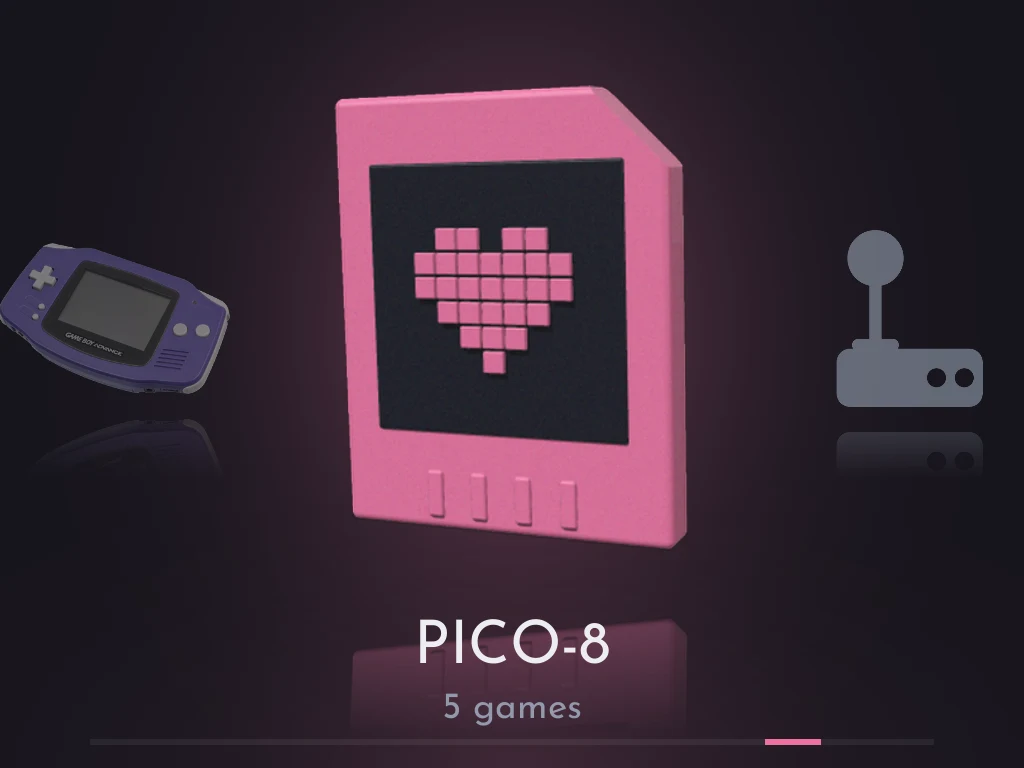
PICO-8, with your own copy ChaOS

PICO-8 is Lexaloffle's fantasy console. ChaOS doesn't include it: if you've bought it, the Brick runs your copy.

  1. From your Lexaloffle account, download the Raspberry Pi version (pico-8_<version>_raspi.zip).
  2. Put the zip in the card's PICO-8 folder, with ChaOS Transfer (it has a PICO-8 place) or a card reader. ChaOS takes out the two files it needs, pico8_64 and pico8.dat. Copying just those two works as well.
  3. A PICO-8 shelf appears. Its first card is Splore, PICO-8's browser of the carts people share, over Wi-Fi.
  • Your own carts, .p8 and .p8.png, go in Roms/PICO-8. A .p8.png cart is its own cover.
  • Overlays: put your own PNG in Overlays/PICO-8, the screen's size (1024x768) with a 768x768 window in the middle where PICO-8 draws, and choose it in the PICO-8 shelf's menu under Overlay.
  • B and A are PICO-8's O and X; Y/X and L1/R1 are the same two again. START or MENU opens PICO-8's pause menu. Hold SELECT+START to quit; POWER works as it does in a port.
  • Its settings, cart saves and Splore favourites are kept in ChaOS's userdata and stay through updates. Play time counts as it does for any game.
  • Splore's downloads go through curl, as spruceUI does it, since the Brick's own wget can't reach https.

RomM ChaOS

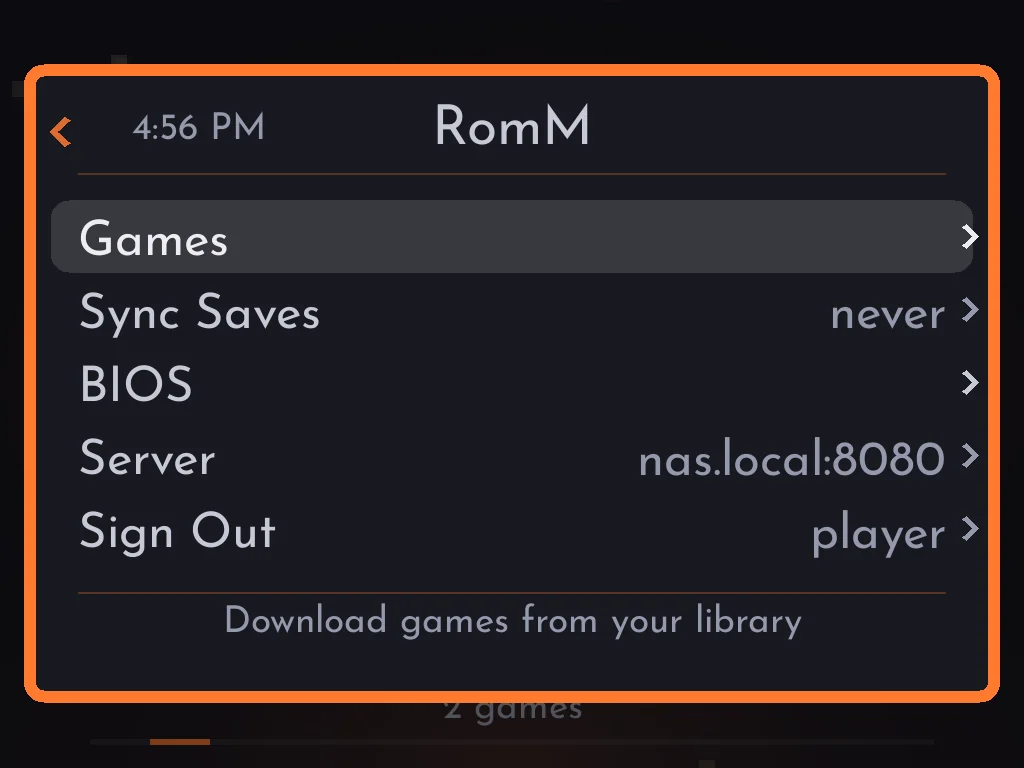
RomM is a game library you run on your own computer or NAS. MENU > ROM Management > RomM connects the Brick to it over Wi-Fi.

  • Sign in: set Server to its address, like nas.local:8080, then Sign In. On RomM 5 the Brick shows a short code to approve in RomM's web page; on RomM 4, make a pairing code in RomM (your profile, Client API Tokens) and type it in. Only a device token is kept, never a password.
  • Games: your library by console, with covers. A downloads a game onto its shelf with RomM's cover as its box art. A game in several files comes as a folder.
  • Sync Saves: RomM's own save sync for the games you got from it, and their save states too. A save the server replaces is backed up first to Saves/.romm-backup; when both changed, yours goes up beside the server's, so nothing is lost. A state either side changed goes to the other, and when both did, the newer wins and the other is kept. It runs only when you choose it.
  • BIOS: the firmware RomM keeps for ChaOS's consoles, into Bios/.

Get Homebrew ChaOS

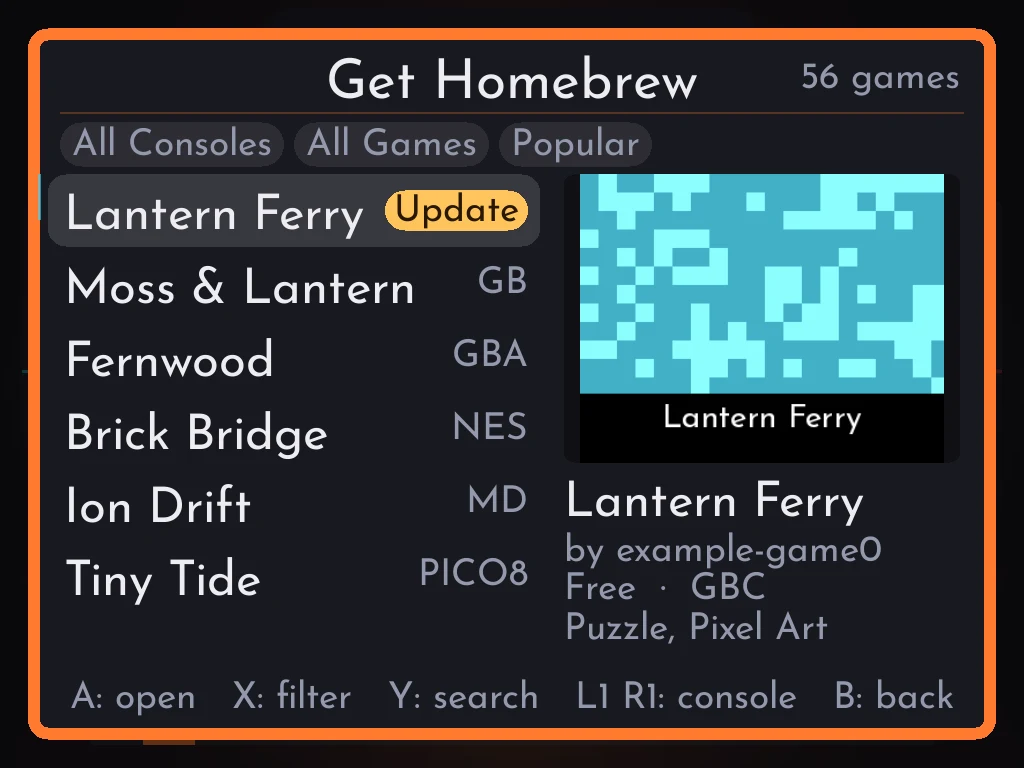
New games are still being made for these consoles, and most are on itch.io. MENU > ROM Management > Get Homebrew brings them to the Brick over Wi-Fi, for NES, Master System, Game Boy, Genesis, TurboGrafx-16, Game Gear, SNES, Game Boy Color, Game Boy Advance and PICO-8.

  • Every console in one list. L1/R1 change console, Y searches by title or author, and X filters: free, paid, games you own, or what's on your Brick, sorted by popular, newest, A to Z or downloaded first.
  • A page for each game: its cover and screenshots, its description, what it costs (and what the developer suggests), its tags, and a QR code to open it on your phone. Games tagged with content you'd rather be asked about ask first.
  • A downloads it onto its shelf, with its cover as box art. ChaOS picks the file for the Brick (not the web version or another handheld's), unpacks a zip, and puts a Game Boy Color game on the Color shelf and a PICO-8 cart on PICO-8's. A game already on your card, under any name, isn't kept twice.
  • Manage Downloads checks your games for newer files on itch.io, and deletes them (their saves stay).
  • Games you bought download with your own itch.io API key (itch.io, Settings, API keys). Type it in itch.io Key, or paste it on ChaOS Transfer's first page. It stays on the card and is never shown again.

Free games download the way itch.io's own Download button works, so a change to itch.io's site can stop them until ChaOS catches up. The catalogue, game pages and content warnings, and much of how games are sorted into consoles, follow NextUI-Itchio-Pak by Christophe Vanlancker.

Syncthing ChaOS

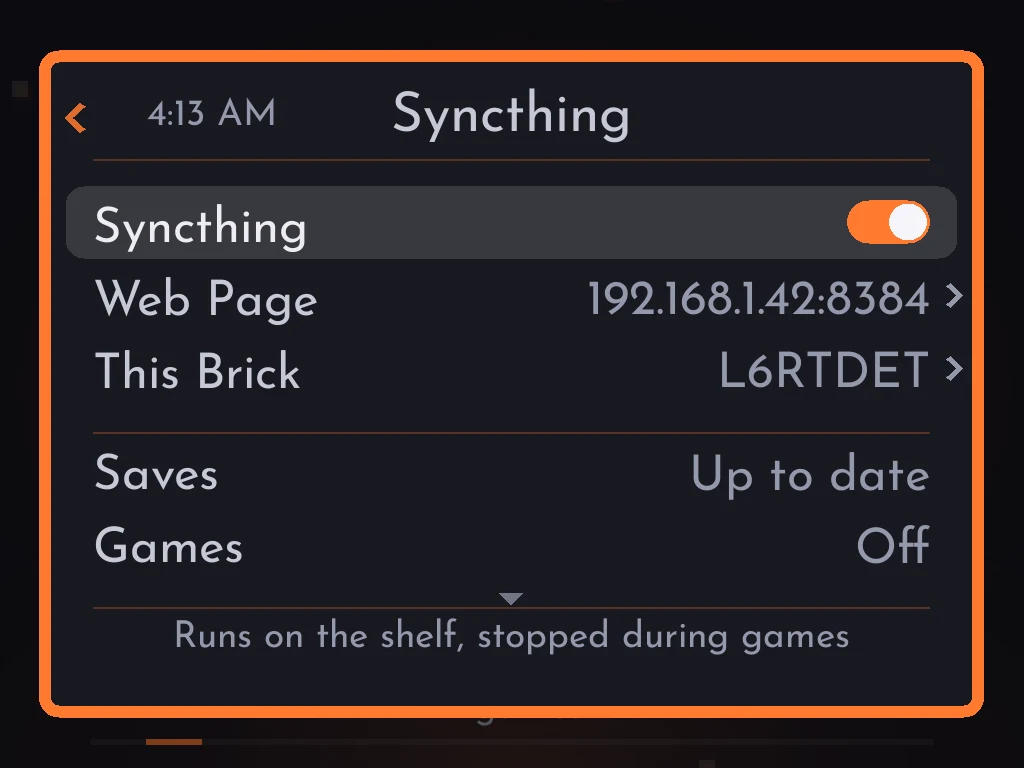
Syncthing keeps folders the same on your devices, over your own network, with no server in between: the Brick's saves with RetroArch on your computer, its games with another Brick. MENU > ROM Management > Syncthing.

  1. Get Syncthing downloads it (about 13 MB) from Syncthing's own release, checked against its published checksum, and turns it on.
  2. On a computer running Syncthing, choose Add Remote Device. The Brick is in the list of nearby devices; pick it.
  3. On the Brick, "<computer> wants to pair" appears. A pairs, X ignores.
  4. The computer is offered the Brick's shared folders and asks where to keep each.
  • Saves (saves, and save states in Saves/States, ready for another ChaOS device), Games (all of Roms/) and BIOS each switch on and off, and say Up to date or how far along they are. Saves is on to begin with. A folder that's on goes to every paired device, and two Bricks share the same folders with no setting up.
  • Nothing runs while you play. Syncthing is stopped outright for every game, port and PICO-8 cart, and catches up when you're back on the shelf. There it runs at low priority.
  • Web Page shows the Brick's address and password for Syncthing's own page in a browser, for everything else: ignore patterns, file versions, folders of your own.
  • Its keys, settings and database stay in ChaOS's userdata, so updates keep your pairings.

Game Boy or Color, sorted ChaOS

Lots of new Game Boy games come from indie developers, on itch.io and elsewhere, many made with GB Studio. Plenty of them are Game Boy Color games named .gb, so they end up in the Game Boy folder, where they either don't show up or start in black and white, or tell you they need a Game Boy Color. Some black-and-white games come named .gbc the other way round.

  • Every game plays right, wherever it is. Both folders show .gb, .gbc, .cgb and .dmg files. ChaOS reads the game's header, which says what it was made for, and plays it on that machine: Color games in color, black-and-white games exactly as they were, never tinted. Games in a .zip or .7z too.
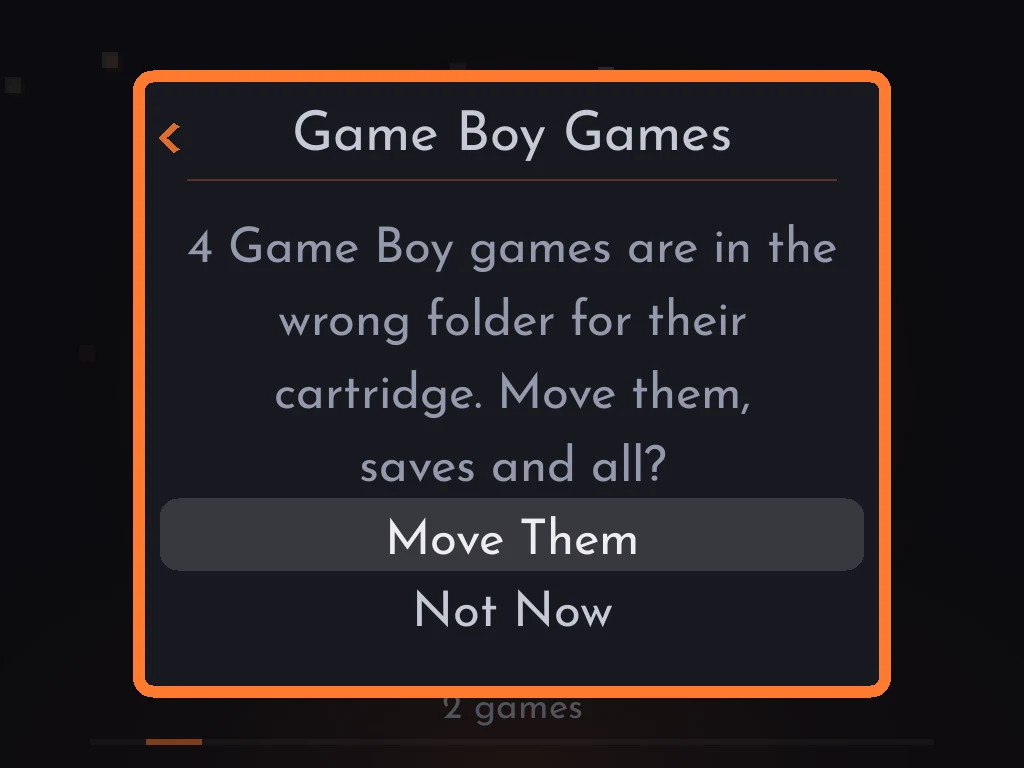
  • And ChaOS sorts them for you. After ChaOS Transfer sends anything, and once a week, it looks in the background for games in the wrong folder (never while you play, and it only reads new files). If it finds any, it asks: Move Them or Not Now. Not Now is remembered.
  • Everything goes with the game: its saves and save states, box art, play time and its place in Recently Played, favorite, cheats, game info and RomM link.
  • MENU > ROM Management > Sort Game Boy Games lists every game in the wrong folder whenever you like. A moves one, Move All moves the lot.

PlayStation ChaOS

PlayStation games run on PCSX-ReARMed, built for the Brick's chip, with the CRT shaders, overlays, cheats, achievements, save states and button mapping every console has.

  • Files go in Roms/PlayStation: .chd (about half the size: the best choice), .cue with its .bin, .pbp, .iso or .img. Only the .cue shows; its .bin stays beside it.
  • A game on more than one disc gets a folder of its own, its discs in it and an .m3u naming them, one per line. It's one game on the shelf. More below.
  • No BIOS needed. PCSX-ReARMed has its own. A real one in Bios/ (scph5501.bin, scph1001.bin or scph7001.bin) runs a few more games.
  • Memory cards save to Saves/, as every console's saves do, so they stay through updates. The card a game starts with is kept beside it as .srm.bak, and a save copied in while its game is running is kept as .srm.outside rather than written over: copy saves in with the game closed.
  • Achievements for .chd, .cue/.bin, .iso, .img and multi-disc games. A .pbp plays, but has none.
  • The Brick has no analog sticks, so games that need them, like Ape Escape, don't play well. Almost every other game uses the d-pad.

Changing discs ChaOS

Lay a game on more than one disc out like this, and ChaOS treats it as one game:

Roms/PlayStation/Final Fantasy VII/
  Final Fantasy VII.m3u
  Final Fantasy VII (Disc 1).chd
  Final Fantasy VII (Disc 2).chd
  Final Fantasy VII (Disc 3).chd

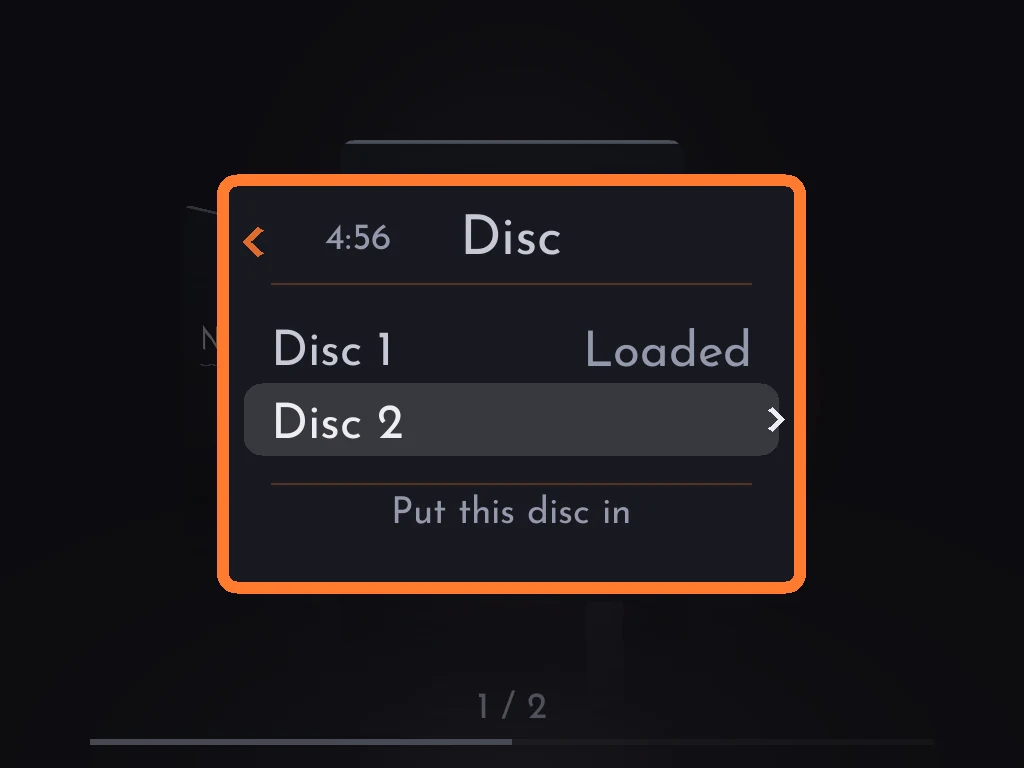
The .m3u is a text file listing the discs, one per line. In a game, MENU > Disc says which is loaded ("Disc 1 loaded"). A opens the discs; pick one, then:

  • Swap Disc is the one you'll use: when the game says Please insert Disc 2. It's the disc tray opening and closing, and the game carries on. Final Fantasy VII, Metal Gear Solid and Chrono Cross all ask this way partway through.
  • Restart With This Disc is turning the console on with that disc in. Use it when a disc is a game of its own: Resident Evil 2's second disc is Claire's story, and starts there. Most other games show their title screen and ask you to load a save; a few say to insert disc 1, and Swap Disc puts it back.

Either goes straight back to the game. B backs out without changing anything.

Multi-disc games, combined ChaOS

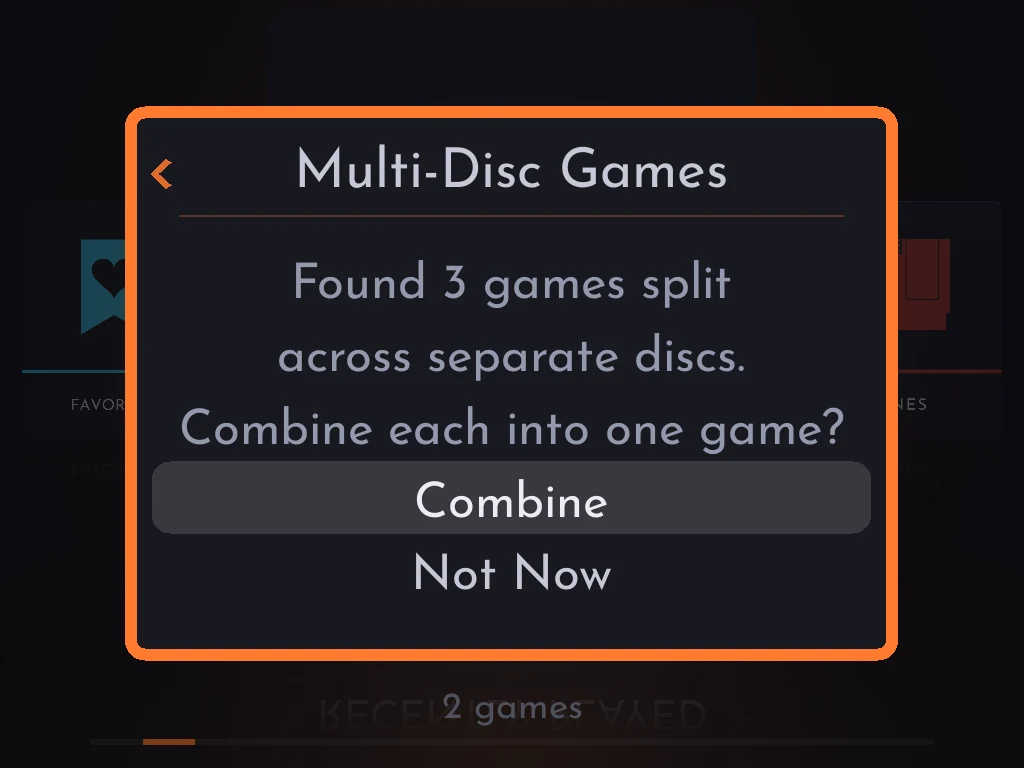
Copied a game's discs in loose, like Final Fantasy VII (Disc 1).chd, (Disc 2) and (Disc 3)? ChaOS lays them out as above for you, so they're one game with Disc in its menu.

  • It notices. After ChaOS Transfer sends anything, and once a week, ChaOS looks for games split across separate discs on the PlayStation and TurboGrafx-16 shelves, and asks: Combine or Not Now. Not Now is remembered.
  • What it does: the discs go into a folder named for the game, a .cue with its .bin tracks, and the folder gets its .m3u. A game's folder that has its discs but no .m3u just gets one.
  • Everything goes with the game: its save, the first disc's save states, box art, favorite, play time and game info.
  • It knows Disc 2, Disk 2 of 3, CD2 and Disc B. One disc on its own, or two copies of the same disc, are left as they are.
  • MENU > ROM Management > Multi-Disc Games lists them whenever you like. A combines one, Combine All the lot.

Muse: music and audiobooks

  • SELECT opens Muse from anywhere but a running game (the in-game menu counts), and closes it again. Music keeps playing everywhere; a game goes quiet while it plays and comes back when you pause.
  • Music in Music/<artist>/<album>/. Loose album folders are filed by their tags; loose songs go to Singles.
  • Audiobooks in Audiobooks/, one M4B or a folder of files per book. A book remembers its place and its own speed (0.75× to 2×), and says Finished at the end.
  • MP3, M4A, M4B, MP4, AAC, FLAC, Ogg, Opus and WAV. Play modes: in order, repeat all, repeat one, shuffle.
  • Album Art in Muse's menu fetches covers from MusicBrainz for albums without one.
  • Lock Screen: hold F1+F2 to switch the screen off and lock the buttons while it plays: about 10 hours of listening instead of 6. Volume, power and headset buttons still work.

Sound and Bluetooth

  • Bluetooth headphones: MENU > Wi-Fi & Bluetooth > Bluetooth, Y to search, A to pair, X to forget. They reconnect by themselves, even mid-game. The volume buttons reach them, and their play, pause and skip buttons control Muse.
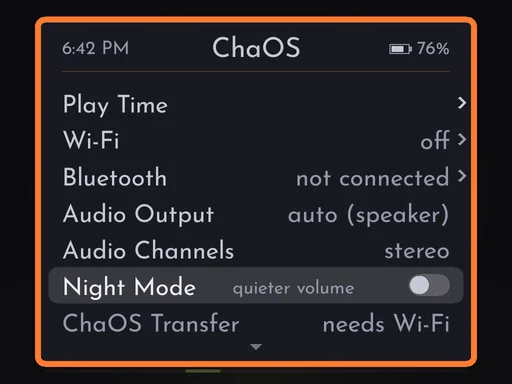
  • Audio Output (MENU > System Settings, with Audio Channels and Night Mode): Auto (cable, then Bluetooth, then speaker) or Speaker.
  • Audio Channels: stereo, mono, mono left or mono right, for hearing with one ear.
  • Night Mode ChaOS: eight volume steps below the quietest, for playing in bed. Turning it on or off keeps the loudness you have.
  • Wired headphones get their own volume range, so plugging in never jumps loud.

Look and settings

  • Appearance ChaOS on one page: UI Theme, UI Direction, Transition Speed, Menu Color, and Shelves, a page of its own: Game List View, Show Shelf Name, Shelf Order (the consoles by release date, A to Z, or by maker, with the Game Boys side by side, or your own, set in Arrange Shelves), and Show Favorites, Show Recently Played and Show Muse.
  • Every menu says what its rows do ChaOS, in a line at the bottom.
  • The clock and battery ChaOS in every menu's heading. MENU > System Settings has Date & Time (the zone, 12- or 24-hour), Show Clock, and Show Battery as an icon, a percent or both. Wi-Fi keeps the clock right.
  • Boot and power-off ChaOS: the logo's pixels fly in, and fly out again, like the little logo at the top of this page.
  • Auto Off after a while without a button (not while music plays or it's charging).
  • About ChaOS: version, the TortOS it's built on, free space on the card, address, battery, time awake.

Menu Color ChaOS

ChaOS OrangeChaOS CyanCreamTortOS CyanLimeGoldRedPinkPurpleBlue

Consoles

Each console has a folder in Roms/. A console with nothing in its folder is hidden.

ConsoleFolderFilesCore
NESRoms/NES.nes .fds .unf .unif .zip .7zFCEUmm
SNESRoms/SNES.sfc .smc .zip .7zSnes9x 2010
GenesisRoms/Genesis.md .gen .bin .smd .zip .7zGenesis Plus GX
Master SystemRoms/Master System.sms .zip .7zGenesis Plus GX
TurboGrafx-16 and CDRoms/TurboGrafx-16.pce .sgx .cue .ccd .chd .toc .m3u .zip .7zBeetle PCE Fast
Game BoyRoms/Game Boy.gb .dmg .gbc .cgb .zip .7zmGBA
Game Boy ColorRoms/Game Boy Color.gbc .cgb .gb .dmg .zip .7zmGBA
Game Boy AdvanceRoms/Game Boy Advance.gba .agb .zip .7zmGBA
Game GearRoms/Game Gear.gg .zip .7zGenesis Plus GX
Neo Geo PocketRoms/Neo Geo Pocket.ngp .ngc .ngpc .npc .zip .7zBeetle NeoPop
Neo Geo Pocket ColorRoms/Neo Geo Pocket Color.ngp .ngc .ngpc .npc .zip .7zBeetle NeoPop
PlayStationRoms/PlayStation.chd .cue .pbp .m3u .iso .img .ccdPCSX-ReARMed
PortsRoms/Portsinstalled from the BrickPortMaster
PICO-8Roms/PICO-8.p8 .p8.pngyour own PICO-8

BIOS files go loose in Bios/. Only TurboGrafx-CD needs one, syscard3.pce. PlayStation runs without; a real one (scph5501.bin and the like) runs a few more games. Game Boy Advance runs without; add gba_bios.bin for its boot animation.

Updates

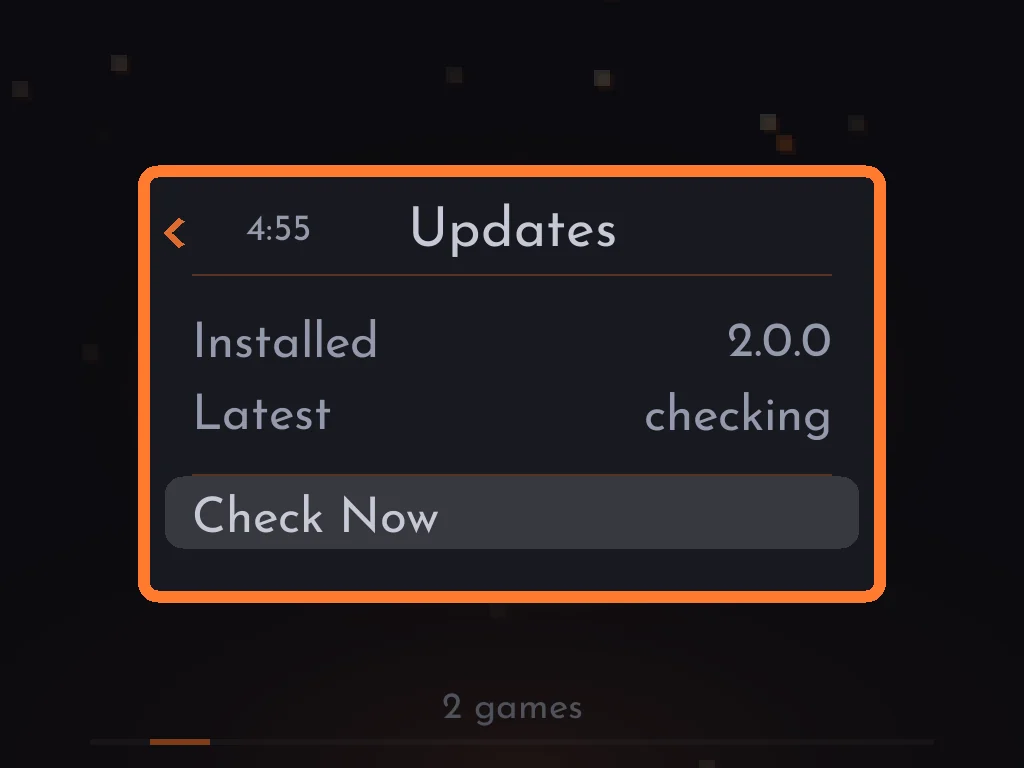
  • MENU > Updates, over Wi-Fi. Your games, music, saves, settings and ports always stay.
  • When the Brick joins Wi-Fi it checks once and says if there's a newer ChaOS. It never installs by itself.
  • What's New shows what a release changes. Update downloads only what changed when it can.
  • Full Install is always offered, and repairs a card whose files have gone wrong.
  • Needs the charger or a quarter charge. If the power goes out, the Brick finishes on the next start.
  • Or update over the cable with ChaOS Wire, or with ChaOS Installer on a computer.
  • Update Channels (About ChaOS): Public Release or Pre-Release. Pre-Release has the newest updates first, including what's made for the Brick Pro, and installs on the Brick, Brick Hammer and Brick Pro. Once tested, its changes are merged into Public Release. Feel free to try it out. Its builds end in -test. On Public Release a Brick only ever hears of releases. Switching back never takes a Brick back; it waits for the next release.

Recent releases

2.7.7

Favorites is a matte red heart and Recently Played a mid-century wall clock: photographs in Fancy Pants, drawn to match in Plain Jane. Fixed: RomM pairing failed with "422" on RomM 5.4; when RomM turns something down, ChaOS now shows its reason. Fixed: after an update with the ChaOS Installer, the next start could offer the same version again.

2.7.6

Muse is a first-generation iPod: a photograph in Fancy Pants, drawn to match in Plain Jane. Splore has its own box art on the PICO-8 shelf. Fixed: Box Art skipped every game, as libretro's thumbnail server went empty; covers now come from libretro's own collection on GitHub. A big music library no longer slows startup.

2.7.5

Ports is an early-90s all-in-one computer: a photograph in Fancy Pants, drawn to match in Plain Jane. Fancy Pants' rendered cards (Favorites, Recently Played, Muse, PICO-8) are lit like the console photographs beside them.

2.7.4

Fancy Pants' Favorites heart and Recently Played watch now have the same matte finish as the consoles, and Ports is a retro PC monitor in every theme, a real MS-DOS session on its screen in Fancy Pants.

2.7.3

A new UI Theme, ChaOS Pixel Burst: the logo's pixel look on every screen. Save states sync: they now live in Saves/States, so Syncthing's Saves folder carries them, and RomM's Sync Saves syncs them too. Fixed: a new card now has a folder for every console, PlayStation and PICO-8 included.

2.7.2

Two new Game List View choices, List + Art Left and List + Art Right: the list beside the selected game's cover, which fits itself to the art's shape. Only the selected name scrolls when it's too long.

2.7.1

Fixed: on the Shelves page in the normal game view, each row did the one above's, so Shelf Order opened Arrange Shelves. Every row does what it says again.

2.7.0

Shelves, under Appearance: Shelf Order (release date, A to Z, by maker, or your own with Arrange Shelves), and the d-pad's other direction to change shelf with a slide and the console's name. Every shader setting explained in the menu, PT's backings named for their consoles, Hold Y showing the game as it will look, and rewind no longer freezing at its oldest point.

2.6.10

PICO-8 overlays: put your own PNG in Overlays/PICO-8 and choose it in the PICO-8 shelf's menu under Overlay.

2.6.9

New buttons in games: hold F1 to rewind, F2 for fast forward, and MENU+SELECT to save and quit. Brightness is MENU+Volume everywhere. Box art from LaunchBox, searched and picked on the Brick or in ChaOS Transfer. Battery Warnings can choose when ChaOS saves and turns off. The SkyWalker541 shader is quicker, for Game Boy Advance with rewind. And 2.6.8's version number after updating is right.

2.6.8

In-game saves are kept: from the second game after turning on, a game's own saves (a memory card, a cartridge battery) were not being written to the card. They are now, and straight away when you open the menu or Reset. The save each game starts with is kept as a .bak beside it. And sound that keeps up: when a game falls behind (a heavy scene, a shader), ChaOS skips drawing one frame to catch up, so the game keeps its original speed and its sound stops crackling.

2.6.7

Games in .7z archives: they show on their shelves and play, with achievements, Game Boy sorting and box art, as a .zip does. Bugs and ideas now go to the ChaOS Control Discord.

2.6.6

Rewind costs games less: its saves are compared faster and on another core, which should stop the sound crackling with rewind on, as in Game Boy Advance games with the SkyWalker541 shader.

2.6.5

Better logs, for finding bugs: a time on every line, each game's start, save, load, reset and disc change, each setting changed, and Download logs in ChaOS Transfer now includes port, PICO-8, update and system logs, and a list of your save files.

2.6.4

Battery Warnings in System Settings: choose when the low battery dot shows and when it blinks, and whether each shows over your games.

2.6.3

The Disc option in the in-game menu stays put for a game on more than one disc, instead of coming and going.

2.6.2

PlayStation games on more than one disc: Restart With This Disc starts the game on that disc instead of the console's CD player screen, and a game left on its second disc resumes there instead of going black.

2.6.1

Disc in the in-game menu works again (it closed the menu and went missing). ChaOS Transfer says when an update is out and can install it, asking on the device before it restarts. It also asks first before deleting or renaming something ChaOS relies on, such as a console's folder or the file that holds play time. Box Art for every game finds multi-disc games too, and a Game Boy game moved to Game Boy Color still finds its cover. A test build starts on Pre-Release.

2.6.0

Get Homebrew, rebuilt: every console in one list to filter, sort and search, a page for each game with screenshots and a QR code, update checks for your downloads, content warnings, and PICO-8. Update Channels in About ChaOS: Public Release or Pre-Release, for test builds before they're released.

2.5.0

Get Homebrew: new games from itch.io for nine consoles, free ones and ones you bought, onto their shelves with their covers. Multi-disc games copied in loose are found and combined into one game.

2.4.1

ChaOS Transfer's folder path no longer crowds the buttons when you're deep in folders: it has a line of its own, a Back button, and a long path folds its middle into ….

2.4.0

PlayStation, with achievements and changing discs. A tidier main menu: Wi-Fi & Bluetooth and System Settings pages, and a dot on Updates when one is waiting. Logs are named ChaOS.

2.3.2

Wi-Fi joins routers set to WPA3, networks whose names have an accent, an emoji or a curly apostrophe in them, and networks with a 64-digit hex key.

2.3.1

Recently Played shows each game's box art again, and starts it from its own console's folder, when Favorites is on the shelf too.

2.3.0

Game Boy or Color, sorted: every Game Boy game plays on the machine it was made for, and ChaOS offers to move the ones in the wrong folder, saves and all. PT SkyWalker541 now sets the emulator the way it's tuned for. A rendered watch for Recently Played and a new arcade stick for Ports in Fancy Pants.

2.2.0

PICO-8 with your own copy, Splore included. Syncthing for saves, games and BIOS on all your devices, beside RomM in the new ROM Management menu. ChaOS Transfer opens folders of thousands of games, from TortOS 2.2.1.

2.1.2

Crop Overscan for NES, TurboGrafx-16 and Master System, in the console's menu and the in-game menu.

2.1.1

Port pages keep their facts clear of the description, and What's New and other scrolling cards keep their text inside the card, fading at its edges.

2.1.0

Cheats: Game Genie, Action Replay, GameShark and Code Breaker codes from libretro's database, switched on and off in the in-game menu.

2.0.0

PortMaster on the Brick, RomM, and the power panel in ports.

Every release, with what each one changed.

What the Updates screen's messages mean
MessageWhat it meansWhat to do
needs Wi-FiThe Brick isn't online.Join a network under MENU > Wi-Fi & Bluetooth.
Wi-Fi is offWi-Fi is turned off.Turn it on under MENU > Wi-Fi & Bluetooth, then Try Again.
Wi-Fi isn't connectedNo network, or no internet address yet.Connect, wait a moment, then Try Again.
charge to 25%The battery is too low to install safely.Charge to 25%, or plug in the charger.
This one needs ChaOS InstallerThe new version changes parts of the card the Brick can't update by itself.Update with ChaOS Installer on a computer.
Couldn't reach GitHubNo internet on this network, or GitHub is down.Check the network, then Try Again.
Couldn't start the checkThe check couldn't start at all.Restart the Brick. If it keeps happening, send the logs.
Update info unreadableThe release's update information is damaged or missing.Try again later.
Not enough space on the cardAn update needs about 200 MB free.Free up space, then Try Again.
Couldn't start the downloadThe download couldn't start.Try Again, or restart the Brick.
The download stoppedThe connection dropped partway.Try Again on a steadier connection.
The download went missingThe partial download disappeared from the card.Try Again, and leave .dev alone while it downloads.
Checksum didn't matchThe download arrived damaged and was deleted. Nothing changed.Try Again, or another network.
The download wouldn't unpackUsually a full or failing card. It was deleted.Free up space and Try Again.
Couldn't check the downloadThe check couldn't run.Try Again. If it keeps happening, send the logs.
The download is goneThe finished download was removed before installing.Download it again.
The download isn't a systemThe file on the card isn't a ChaOS update. Nothing changed.Remove Download, then download again.
Too big for this cardThe new system doesn't fit the system partition. Nothing changed.Update with ChaOS Installer.
No boot partition foundThe card's boot partition is missing. Nothing changed.Update with ChaOS Installer.
Couldn't open the boot filesThe boot partition wouldn't open. Nothing changed.Restart and try again, or use ChaOS Installer.
Couldn't write to the cardThe card couldn't be written to. Nothing changed.Restart and try again, or check the card on a computer.
Couldn't copy the updateA small update stopped partway. The download stays on the card.Install and Restart again.
Needs ChaOS InstallerThis card's start-up files can't install updates by themselves.Update with ChaOS Installer once.

If About ChaOS still shows the old version after a restart, the install didn't finish: start the Brick again, or use ChaOS Installer.

FAQ

My games don't show up.

Check the folder name against the console table, spelled exactly, and that the file type is listed. Games sent over ChaOS Transfer appear when you leave its screen; games copied another way while the Brick is on appear after Rescan Folder in the console's menu, or a restart.

Will an update or reinstall lose my saves?

No. Updates over Wi-Fi, ChaOS Wire and ChaOS Installer's Update all keep your games, music, saves, settings, ports and port saves. Only writing the image by hand erases the card.

A port won't start, or shows a black screen.

Check it's under May Run on ChaOS. If ChaOS names a missing library, it may come in a later library pack. Otherwise send the port's log from .userdata/brick/ports/logs/.

Something went wrong. How do I send the logs?

Open MENU > ChaOS Transfer, open its address in a browser, and click Download logs. Then post it in #bugs on the ChaOS Control Discord, with what you were doing and roughly when it happened.

I have an idea for a feature. Where do I suggest it?

In #feature-requests on the ChaOS Control Discord. Problems and bugs go in #bugs there, and it's also where to get help or join in testing the Brick Pro on Pre-Release.

Is PICO-8 included?

No. PICO-8 is sold by Lexaloffle, and ChaOS runs your own copy: its Raspberry Pi download, put in the card's PICO-8 folder. See PICO-8.

Should I use RomM or Syncthing for saves?

Either. RomM's save sync is for games you got from your RomM server, and runs when you choose it. Syncthing keeps whole folders the same on your devices all the time, with or without a server. Using both on the same saves isn't needed.

How do I go back to the Brick's own system?

Take the card out. ChaOS changes nothing on the Brick itself. Everything ChaOS keeps, Wi-Fi passwords and Bluetooth pairings included, is on the card, so reformat it before you give it away.

Credits

ChaOS stands on a lot of other people's work. Every name here is in CREDITS.md, with licences, sources and notices.

TortOS, Diatom and plastron

by Eric Reinsmidt. ChaOS is a fork of TortOS: the launcher, menus, Muse, file transfer, box art, RetroAchievements and the rest of what makes it work on the Brick are Eric's. Games run in ChaOS-diatom, a fork of his Diatom, on his plastron system.

ChaOS

by SkyWalker541: the shaders' ports and PT SkyWalker541, the pixel themes, logo and animations, PortMaster, RomM, Syncthing and PICO-8 support, and the rest marked ChaOS above.

Made with AI-assisted programming

ChaOS's changes to TortOS, and this website, were written by SkyWalker541 working with Claude, Anthropic's AI. SkyWalker541 decides what ChaOS does, tests every release on a Brick, and approves each change before it ships.

Shaders

crt-lottes-fast by Timothy Lottes, adapted by hunterk. lcd3x by Gigaherz. Scanlines after RiskyJumps. PT SkyWalker541 uses Hash without Sine by David Hoskins, and its dot mode is inspired by Themaister's.

Emulator cores

FCEUmm, Snes9x 2010, Genesis Plus GX, Beetle PCE Fast, Beetle NeoPop, mGBA and PCSX-ReARMed, from libretro, each its authors' work. Snes9x 2010 and Genesis Plus GX forbid commercial use, so ChaOS may never be sold.

Overlays and art

Overlays by SkyWalker541 (CC0) and KrutzOtrem (MIT), via NextUI Community Overlays. Fancy Pants console photographs by Evan Amos. Josefin Sans by Santiago Orozco (OFL).

Ports and services

PortMaster and its porters; minui-portmaster by ben16w. RomM and its client Grout. Syncthing (MPL-2.0), downloaded from its own releases, not part of ChaOS. PICO-8 by Lexaloffle Games, not included; the way its Splore downloads with curl is spruceUI's. RetroAchievements, libretro thumbnails, libretro's cheat database (CC BY-SA 4.0), MusicBrainz and the Cover Art Archive, and itch.io (with NextUI-Itchio-Pak by Christophe Vanlancker).

Libraries

SDL2 and its mixer, net and gfx libraries, OpenAL Soft, FluidSynth, libsndfile, Xiph's Ogg, Vorbis, FLAC and Opus, GNU bash, squashfs-tools, and the port library pack's cairo, pixman, fontconfig, GMP, libtheora and libevdev, each under its own licence.